
Knowing how to Bates stamp redacted documents for discovery production means getting the order of operations right: redact first, then stamp. If you reverse that sequence, you risk burning Bates numbers into redaction layers, creating sequence gaps, and triggering costly re-productions that opposing counsel will not accept quietly. This guide walks through the full discovery production redaction workflow, from redacting source PDFs to placing Bates stamps in clean margin space to running the QC checks that catch problems before production goes out the door.
Why Redaction Must Happen Before Bates Stamping
The single most important rule in this workflow is simple: redaction before Bates numbering. Not the other way around. When you redact a PDF first and then apply Bates stamps, the stamps land on clean, final page content. When you stamp first and redact second, several things can go wrong — and most of them are not visible until opposing counsel or the court notices.
The core problem is that redaction tools operate on the rendered page. If a Bates number already sits in the footer or margin and your redaction box — drawn to cover privileged text nearby — overlaps even slightly, the redaction burns over the number. The stamp disappears under a black box. You now have a document with no visible Bates identifier, which means you cannot produce it without re-stamping, and re-stamping means assigning a new number or reusing the old one in a way that may break your sequence.
There is also a metadata risk. Some redaction workflows flatten the PDF — merging all layers, annotations, and form fields into a single content layer — as part of burning the redaction in. If Bates stamps were applied as annotations or comment-layer objects rather than flattened content, the flattening step can strip them, shift them, or merge them unpredictably.
For a broader primer on the numbering system itself, see what Bates numbering means in eDiscovery. And for the full production lifecycle after redaction, our guide on how to Bates number PDFs for discovery production covers prefix conventions, sequence gaps, and load file coordination.
How to Redact PDFs Before Applying Bates Numbers
Redaction is not just drawing a black box over text. A proper redaction removes the underlying text and images from the PDF data stream so the privileged content cannot be selected, copied, or extracted. Anything less is an overlay, not a redaction, and it will not survive a production challenge.
Redaction Steps in Adobe Acrobat Pro
- Open the PDF in Acrobat Pro and select Tools > Redact.
- Choose Mark for Redaction > Text & Images, then drag boxes over the privileged content.
- Optionally set redaction appearance — fill color, border, optional overlay text such as "PRIVILEGED" or a privilege log entry number.
- Click Apply. Acrobat removes the underlying content and flattens the marked areas.
- Save the redacted file with a new filename (for example,
DOC_0001_REDACTED.pdf) so the original is preserved.
Redaction Steps in Dedicated eDiscovery Tools
Platforms like Relativity, Reveal, Everlaw, and DISCO handle redaction at the review stage, before production export. The workflow differs from Acrobat:
- Reviewers mark redactions on the native or TIFF image within the review platform.
- The platform stores redaction coordinates as metadata, separate from the document image.
- On production export, the platform renders the redactions into the produced image or PDF and applies Bates numbers in the same pass or a subsequent pass.
This integrated approach eliminates the manual handoff between redaction and stamping, which is where most errors occur. If your firm handles high-volume productions, the platform-native workflow is almost always safer than redacting in Acrobat and then stamping separately.
Redaction Verification
After redacting and before stamping, verify each redacted page:
- Attempt to select text near and under each redaction box. If you can select or copy privileged text, the redaction failed.
- Check the PDF properties for hidden text layers that may still contain the redacted content.
- Run a search for key terms that should have been redacted (party names, medical record numbers, account numbers) and confirm zero hits in the redacted file.
Where to Place Bates Stamps on Redacted Documents
Bates stamp placement on redacted documents matters more than on ordinary productions because redacted pages already have visual obstructions. You need a stamp location that is always legible, never overlaps a redaction box, and does not collide with confidentiality designations or other production markings.
Standard Placement Conventions
| Placement Area | Typical Use | Risk on Redacted Documents |
|---|---|---|
| Bottom right margin | Most common; aligns with traditional Bates stamping | Low risk if margin is at least 0.5 inch |
| Bottom left margin | Common alternative; pairs with right-side confidentiality stamp | Low risk; same margin requirement |
| Bottom center | Used when right and left margins are occupied | Moderate risk; can collide with footer text or redactions spanning full width |
| Top right margin | Used for documents with dense bottom margins (forms, spreadsheets) | Low risk; verify no header redactions overlap |
| Right side margin (vertical) | Rare; used for bound exhibits | Higher risk; can interfere with binding or redaction edges |
The safest approach for redacted documents is the bottom right corner with a minimum 0.5-inch margin from the page edge and at least 0.25 inches of clearance from any redaction box above it. If the bottom right is occupied by a redaction, move the stamp to the bottom left — do not place it over or adjacent to the redacted area.
Placement Rules to Follow
- Never place Bates numbers over redacted areas. The number must be fully legible on unredacted page space.
- Maintain consistent placement across the entire production set. Opposing counsel and the court rely on predictable stamp locations for reference.
- If a document has full-width redaction bars across the bottom, move the stamp to the top margin for that document and note the exception in your production log.
- Keep at least 0.1 inches of clearance between the Bates stamp and any confidentiality designation so the two markings do not visually merge.
Step-by-Step: Bates Stamping Redacted PDFs in Adobe Acrobat
Once your documents are redacted, verified, and saved as new files, you are ready to stamp. This section covers the Acrobat Pro workflow, which is the most common tool for mid-volume productions handled outside a full eDiscovery platform.
1. Prepare Your File Set
Assemble all redacted PDFs into a single folder. Confirm filenames sort in the order you want the Bates sequence to follow. If filenames are inconsistent, rename them with a zero-padded prefix (for example, 001_DOC_0001_REDACTED.pdf) so the sort order is unambiguous.
2. Open the Bates Numbering Tool
In Acrobat Pro, go to Tools > Edit PDF > More > Bates Numbering > Add. Select all files in your prepared folder. Arrange them in the correct sequence using the up and down arrows in the file list dialog.
3. Configure the Bates Number Format
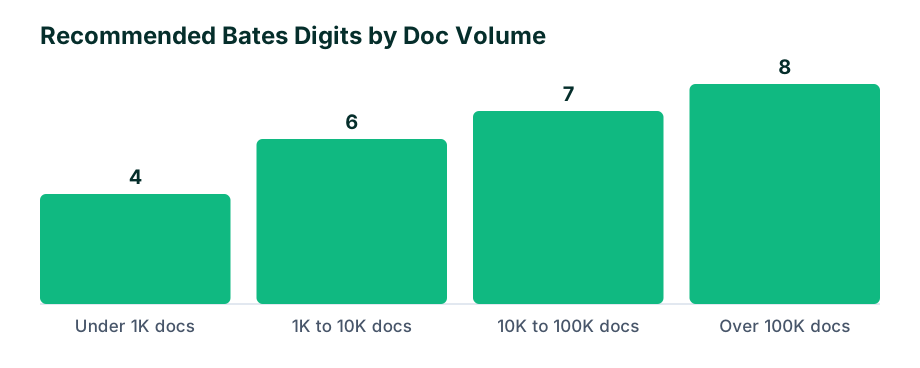
Set your prefix, starting number, and number of digits. A typical format for a 2026 production might be SMITH-000001, where SMITH identifies the matter and six digits accommodate the document count. Set suffix digits if your production protocol requires them.
4. Set Stamp Appearance and Placement
In the appearance settings:
- Font: Courier or Arial, 10–12 point. Courier is traditional and ensures uniform character width.
- Color: Black for standard productions. Some protocols require red for confidential or highly confidential documents.
- Position: Bottom right, with X and Y offsets of at least 0.5 inches from the page edge.
- Margin clearance: Verify the stamp does not overlap any redaction box. Acrobat will not detect redactions automatically — you must confirm this visually.
5. Apply and Save
Click OK to apply the Bates numbers. Save the stamped files to a new production folder, separate from your working redacted copies. The production folder is what gets delivered — never deliver from your working files.
For guidance on the broader production handoff, see Bates stamp produced documents for opposing counsel, which covers delivery format, cover letters, and production protocol alignment.
Bates Stamping Redacted Documents in eDiscovery Software
When you are working in a dedicated eDiscovery platform, the redaction and Bates numbering workflow is more automated but still requires configuration and oversight. Most platforms apply Bates numbers during the production export step, after redactions have been marked and approved during review.
Relativity
In Relativity, redactions are applied during document review using the Redaction tool in the Viewer. Reviewers draw redaction shapes on the image or native file, and the platform stores them as markup metadata. When you build the production in the Production workspace, you define the Bates numbering scheme — prefix, starting number, digit count, and stamp placement — as part of the production set. Relativity renders the redactions and Bates stamps together during production, so there is no risk of stamping over a redaction unless your placement settings overlap a redacted region.
Everlaw
Everlaw similarly handles redaction in the review interface and Bates numbering in the production builder. You can configure stamp position, font, and size in the production profile. Everlaw applies stamps to the produced image or PDF, with redactions burned in during the same render pass.
Platform-Native Workflow Advantages
| Feature | Acrobat Manual Workflow | eDiscovery Platform Workflow |
|---|---|---|
| Redaction and stamping coordination | Manual; high error risk | Automated in single render pass |
| Volume capacity | Practical up to a few hundred documents | Handles tens of thousands or more |
| Sequence integrity | Depends on file sort order | Managed by platform database |
| Load file generation | Separate step | Built into production export |
| QC and rework | Manual page-by-page | Automated exceptions reporting |
If your matter involves more than a few hundred documents or requires a load file (DAT, OPT, or LFP), the platform workflow is strongly preferred. For smaller productions or ad hoc document sets, Acrobat is workable but requires careful QC.
Common Mistakes When Bates Stamping Redacted Documents
Even experienced litigation support teams make predictable errors when redaction and Bates numbering intersect. Here are the ones that cause the most production defects.
Stamping Before Redacting
This is the most damaging mistake. If you stamp first, then redact, any redaction box that overlaps the stamp area destroys the number. You then face a choice: re-stamp with a new number (creating a gap in your original sequence) or try to re-stamp with the same number (which may not be possible if the original file was overwritten). Always redact first.
Overlay Redactions Instead of True Redactions
Drawing a black rectangle over text in Acrobat without using the Redact tool does not remove the underlying text. The content is still in the PDF data stream and can be extracted. If you then Bates stamp over or near these pseudo-redactions, the production contains discoverable privileged information. This has led to sanctions and waiver rulings in multiple jurisdictions.
Inconsistent Stamp Placement Across a Production
If some documents have the Bates number bottom-right and others have it top-right because the bottom margin was redacted, opposing counsel may struggle to locate numbers efficiently. Establish a primary placement and a documented fallback for exception pages, and note any deviations in the production cover letter.
Failing to Flatten Stamps
Acrobat can apply Bates numbers as annotations rather than flattened content. If the production is later processed by another tool — a document review platform, an OCR engine, or opposing counsel's litigation software — those annotations may not render. After stamping, flatten the PDF or confirm that the stamps are part of the page content layer.
Not Preserving the Original File
Redacting and stamping in place, without saving to new filenames, destroys your source documents. If a redaction is later challenged or a stamp needs correction, you have no clean original to return to. Always work on copies and preserve originals in a separate, read-only directory.
Quality Control Checklist for Redacted Discovery Productions
Run this checklist on every production before it leaves your firm. A single missed item can trigger a clawback motion or a privilege waiver.
- Redaction verification: For every redacted page, confirm the underlying text is removed. Search the produced PDF for terms that should have been redacted and confirm zero hits.
- Bates sequence integrity: Confirm the first and last numbers match your production log. Check that there are no gaps or duplicates in the sequence.
- Stamp legibility: Open 10 percent of the produced documents (or 100 percent for productions under 200 pages) and visually confirm every Bates number is fully legible, not cut off, and not overlapping a redaction.
- Stamp placement consistency: Confirm all stamps are in the expected location. Document any exception pages where placement was moved.
- Confidentiality markings: Confirm confidentiality designations are present where required and do not overlap Bates stamps or redactions.
- File naming: Confirm produced filenames align with your production protocol and Bates numbering scheme.
- Load file accuracy: If a load file accompanies the production, confirm the Bates range, begin and end attach labels, and redaction flag fields match the produced images.
- Privilege log cross-reference: Confirm that withheld documents on the privilege log correspond to gaps in the Bates sequence and that redacted-but-produced documents are flagged appropriately.
- Flattening check: Confirm all redactions and Bates stamps are flattened into the page content and not stored as removable annotations.
- Production set isolation: Confirm the production folder contains only the final, redacted, stamped documents — no working files, no originals, no draft versions.
Tracking Redacted Documents in Your Bates Numbering Log
Your Bates numbering log is the control document for the entire production. For redacted productions, the log needs to capture more than just the Bates range. It should track which documents were redacted, what was redacted, and how the redaction relates to the privilege log.
Minimum Log Fields for Redacted Productions
| Field | Purpose |
|---|---|
| Bates Begin | First stamp on the document |
| Bates End | Last stamp on the document |
| Document ID | Internal custodian or collection identifier |
| Custodian | Source of the document |
| Redacted (Y/N) | Whether the document contains redactions |
| Redaction Reason | Privilege type (attorney-client, work product, PII, trade secret) |
| Privilege Log Entry | Cross-reference number if the document appears on the privilege log |
| Confidentiality Level | Standard, confidential, or highly confidential |
| Exception Notes | Any placement deviations, replacement pages, or errata |
Coordinating With Privilege Logs
Documents that are fully withheld — not produced at all — appear on the privilege log with their Bates range reserved but not delivered. Documents that are partially redacted and produced should be flagged in your log as "redacted produced" so opposing counsel can see that the Bates range is continuous but some content within those pages was removed. For guidance on handling related document sets, see Bates number email attachments in discovery productions, which covers family numbering and attachment ranges that often contain mixed redacted and unredacted content.
Handling Replacement Productions
If a redaction error is discovered after production — for example, an incomplete redaction that leaked privileged text — you will need to issue a replacement. The standard practice is to re-redact, re-stamp with the same Bates number, and deliver a replacement production with a cover letter identifying the corrected document. Some jurisdictions and production stipulations require an errata notice or a clawback under FRE 502(d). Track every replacement in your log with the date, reason, and corrected file reference.
Frequently asked questions
Should you redact before or after Bates numbering?
Always redact before Bates numbering. If you Bates stamp first and then redact, you risk burning the Bates number into the redaction layer or needing to re-stamp, which breaks your production sequence.
Can you place Bates numbers over redacted areas on a PDF?
No. Place Bates stamps in a clean margin area — typically the bottom right corner — so the number is fully legible and does not overlap redacted content or confidentiality markings.
What happens if a redaction covers an existing Bates number?
If a redaction covers a Bates number, you must re-stamp the document, which can create sequence gaps and may require a replacement production with a correlating errata notice.
Do you Bates stamp a privilege log separately from redacted documents?
A privilege log is typically Bates stamped as part of the overall production so opposing counsel can cross-reference withheld document ranges, even though the underlying redacted documents are not produced.
Should confidentiality designations be applied before or after Bates stamping?
Apply confidentiality stamps after redaction but before or alongside Bates stamping, ensuring neither marking obscures the other on the page.