Learning how to Bates stamp produced documents for opposing counsel is one of those skills that separates a smooth production from one that draws a motion to compel. The process involves more than slapping sequential numbers on PDFs — it requires a defensible workflow, the right tool for the volume, and a QC pass that catches errors before opposing counsel does. This guide walks through the full production cycle, from pre-stamping organization through delivery, with concrete steps for both Adobe Acrobat and dedicated eDiscovery platforms.
What Bates Stamping for Opposing Counsel Production Means
Bates stamping is the application of a unique, sequential identifier to every page of every document in a production set. When you produce documents to opposing counsel, those identifiers become the permanent reference system both sides use to cite exhibits, depose witnesses, and build trial binders. A single missing or duplicate number can break that system and trigger disputes.
The term "Bates" comes from the Bates Manufacturing Company, which patented a hand-cranked numbering stamp in the 1890s. Today the process is almost entirely digital, but the principle is unchanged: each page gets a unique, traceable number that ties it to a specific document in a specific production.
It's worth distinguishing Bates stamping vs production numbering more broadly. Bates numbering refers to the page-level identifier itself. Production numbering is the broader concept that includes Bates numbers but also encompasses document-level control numbers, family relationships, and the metadata that travels with the production in a load file. In most litigation contexts, "Bates number" and "production number" are used interchangeably, but the distinction matters when you're building a load file or reconciling a production with a privilege log.
For a deeper primer on the concept itself, see what Bates numbering means in eDiscovery.
Pre-Stamping Checklist: Organize and Prepare Your Documents
Before you apply a single stamp, you need a clean, organized document set. Stamping disorganized files is how duplicate numbers, gaps, and redaction errors happen. Use this Bates stamp document production checklist as your starting point:
- Gather and consolidate source files. Collect all documents slated for production into a single working folder. Convert native files (Word, Excel, email) to TIFF or PDF. Flatten any embedded objects.
- Deduplicate. Run deduplication at the custodian or global level per your discovery agreement. Confirm whether near-duplicates or email threads need special handling.
- Apply redactions first. Redact privileged or confidential information before Bates stamping. If you stamp first and redact second, you risk stamping over a redaction block or producing a version that doesn't match your Bates sequence.
- Establish document boundaries. Confirm where each document begins and ends. Email families, attachments, and multi-page contracts need clear parent-child relationships defined before numbering.
- Determine your Bates prefix and format. Agree on the opposing counsel production Bates numbering format with your lead attorney. A typical format is a client-identifying prefix followed by a zero-padded sequential number — for example,
SMITH-000001. Zero-padding maintains sort order in file systems and databases. - Set the starting number and reserve ranges. If you're producing in rolling productions, reserve number ranges for each batch so you don't create gaps or overlaps. Document the ranges in a production log.
- Flatten and finalize PDFs. Ensure all PDFs are flattened so comments, form fields, and hidden layers don't interfere with stamping or display differently in opposing counsel's viewer.
How to Bates Stamp in Adobe Acrobat Pro (Step-by-Step)
Adobe Acrobat Bates stamping for discovery is the most accessible option for small to mid-sized productions. Acrobat Pro's built-in Bates Numbering tool applies stamps to multiple PDFs in a single batch and gives you control over font, size, position, and prefix.
Step-by-step in Acrobat Pro
- Open Acrobat Pro and go to Tools → Bates Numbering → Add.
- Add files. Click "Add Files" and select the PDFs you want to stamp. You can drag to reorder them — the order here determines the stamping sequence, so verify it against your production index.
- Set the numbering scheme. In the Bates Numbering dialog, set your prefix (e.g.,
SMITH-), starting number (e.g.,1), number of digits (e.g.,6for000001), and suffix if needed. You can also add a date or additional text. - Choose appearance and position. Click "Appearance Options" to set font, font size, color, and opacity. Set the position — bottom right is the most common convention, but confirm against your case's production protocol or stipulation.
- Apply. Click OK to run the batch. Acrobat applies the stamps and saves the files. Always save to a new folder so you preserve the original un-stamped versions.
Acrobat limitations to know
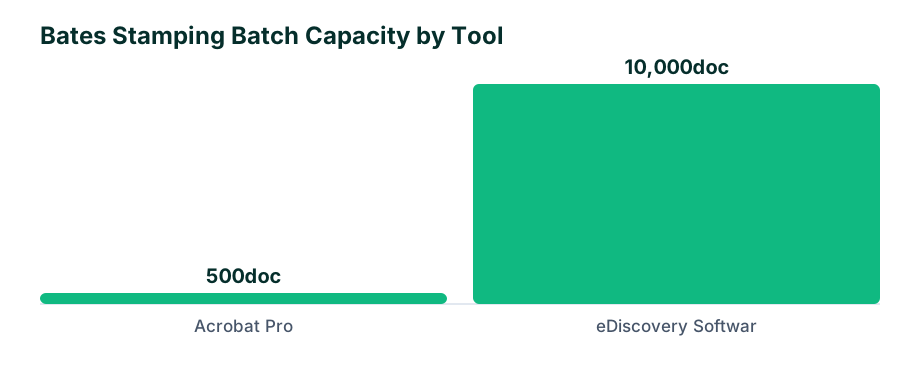
Acrobat doesn't maintain a database of stamped documents. Once the batch runs, the only record of what was stamped lives in the PDFs themselves. There's no native load file generation, no family relationship tracking, and no easy way to re-run a batch with a corrected number range without starting over. For productions over roughly 500 documents or those requiring a Concordance or Relativity load file, a dedicated platform is the better path. For a more detailed Acrobat walkthrough, see Bates number PDFs for discovery production.
How to Bates Stamp in Dedicated eDiscovery Software
eDiscovery software Bates numbering tools handle stamping as part of a broader production workflow. Platforms like Relativity, Reveal, Everlaw, Logikcull, and DISCO apply Bates numbers during the production export, not as a separate manual step. The advantage is that the platform already knows your document families, metadata, deduplication state, and privilege designations.
Typical workflow
- Mark documents for production. Tag or code the documents slated for production within the platform.
- Configure the production set. Define your Bates prefix, starting number, number of digits, and stamp position in the production template. Most platforms let you save templates for consistency across rolling productions.
- Apply redactions and endorsements. Redactions are applied inside the platform and burned into the produced image. You can also add endorsements like confidentiality designations (
CONFIDENTIAL,ATTORNEYS' EYES ONLY) alongside the Bates number. - Run the production. The platform generates stamped images (TIFF or PDF), a load file (DAT, OPT, or XLF), a text file for each document, and a production log. Bates numbers are applied sequentially across the entire set, including attachments and family members.
- Export and deliver. Download the production package or transfer via secure link.
Why dedicated software wins at scale
The platform tracks every Bates number in a database, so you can query for gaps, duplicates, or specific ranges. If you need to re-produce a document — for example, after a clawback — the platform knows exactly where it fits. Load files are generated automatically, which eliminates the manual mapping that Acrobat productions require.
Acrobat vs eDiscovery Software: Which Tool Fits Your Production
Choosing the right tool depends on volume, complexity, and whether you need a load file. Here's a practical comparison:
| Feature | Adobe Acrobat Pro | Dedicated eDiscovery Software |
|---|---|---|
| Typical volume | Under 500 documents | 500 to millions of documents |
| Bates stamping | Manual batch process | Automated during production export |
| Load file generation | Not supported (manual) | Automatic (DAT, OPT, XLF) |
| Document family tracking | Manual | Built into platform database |
| Redaction plus stamping | Separate steps, manual | Integrated, burned into image |
| Privilege log support | Manual | Linked to production set |
| Cost | Low (per Acrobat license) | Higher (per GB or per user) |
| Best for | Small, ad hoc productions | Managed, defensible productions |
If your case involves a few hundred documents, no load file requirement, and a straightforward confidentiality stipulation, Acrobat is sufficient. If you're producing thousands of documents, need a Relativity load file, or have complex email families, a dedicated platform is the only defensible choice. For more guidance on choosing tools and workflows, browse the BatesStamp guides.
Common Bates Stamping Errors That Cause Production Disputes
Production disputes frequently trace back to stamping errors that a QC pass should have caught. These are the most common:
- Duplicate Bates numbers. Usually caused by re-running a batch without updating the starting number, or by stamping overlapping file sets. Opposing counsel will flag this immediately.
- Gaps in the sequence. Missing numbers happen when documents are removed after stamping but the remaining files aren't re-stamped, or when a batch fails partway through. Gaps can look like privilege withholding even when they're just errors.
- Non-sequential ordering. If files are added to a folder in the wrong order before stamping, the Bates sequence won't match the document logic. Email attachments may precede their parents.
- Stamping over redactions. If you stamp after redacting but position the stamp over a redaction block, you can obscure the redaction or create an unreadable overlay. Always verify stamp position relative to redaction boxes.
- Inconsistent formatting. Mixing
ABC-1withABC-0002breaks sort order and database indexing. Zero-padding and consistent prefixes must be uniform across the entire production. - Forgetting to flatten. Un-flattened PDFs can display stamps differently depending on the viewer, or allow stamps to be moved or deleted by the recipient.
- Stamping the wrong version. If you stamp a working copy instead of the redacted final, you've just produced privileged information with a clean Bates number on it — a potential waiver issue.
Quality Control: Verifying Bates Numbers Before You Produce
QC is the step that prevents a re-production. Build it into every production, regardless of tool.
What to verify
- Sequence integrity. Confirm the first and last Bates numbers match your planned range. Check for gaps and duplicates by exporting the Bates column to a spreadsheet and sorting it.
- Stamp legibility and position. Open a random sample of at least 10 percent of the produced pages. Confirm stamps are readable, correctly positioned, and not overlapping text or redactions.
- Document boundaries. Verify that each document starts on a new Bates number and that email attachments follow their parent in the correct order.
- Redaction check. Confirm that every redaction is burned in and that no privileged text is visible or searchable underneath.
- Text searchability. If you're producing searchable PDFs, run a text search for a known term on a few documents to confirm the text layer is intact and that Bates numbers aren't being picked up as document text in a way that skews searches.
- Metadata and load file reconciliation. If you're producing with a load file, confirm the Bates numbers in the load file match the stamped images exactly. Cross-reference document counts.
- Privilege log cross-check. If any documents on your privilege log accidentally received Bates numbers, investigate whether they were produced. If so, initiate clawback procedures immediately under your protective order or FRE 502(d) agreement.
Final Production Formatting: Cover Letters, Load Files, and Delivery
Once stamps are verified, the production package needs to be assembled for delivery.
Cover letter
Every production should include a cover letter that states:
- The producing party and matter name
- The Bates number range included in the production
- The production format (TIFF, PDF, native, or mixed)
- Whether the production is rolling or complete
- The date of production and method of delivery
- A reference to the agreed-upon production protocol or stipulation
Load files
If your production protocol requires a load file, include:
- A DAT file with fielded metadata and Bates ranges
- An OPT or XLF image load file
- A text file for each document
- A production log listing every document, its Bates range, family relationships, and any endorsements
Delivery method
Confirm the agreed delivery method — secure FTP, encrypted drive, or cloud link. Use encryption for any data in transit. If delivering physically, use a trackable courier and retain the tracking receipt. Document the delivery date and recipient in your production log.
A clean, well-organized production with correct Bates numbers signals competence to opposing counsel and the court. A sloppy one invites motions, re-productions, and credibility damage. The difference is almost always in the preparation and QC — not the stamping tool itself.
Frequently asked questions
Do I Bates stamp before or after redacting confidential information?
Always redact first, then apply Bates numbers so the stamps sit on the final, redacted version of each page.
Can opposing counsel reject a production if Bates numbers are wrong?
Yes — incorrect or non-sequential Bates numbers can trigger a motion to compel or require a re-production at your firm's expense.
Is Adobe Acrobat sufficient for Bates stamping large productions?
Acrobat works well for productions under roughly 500 documents, but dedicated eDiscovery software is more efficient for larger volumes.
What Bates number format should I use for opposing counsel production?
Use a consistent prefix identifying your client (e.g., ABC-000001) with zero-padded sequential numbers to maintain sort order.
Should privileged documents receive Bates numbers?
Privileged documents are typically withheld and listed on a privilege log, but if accidentally produced, they should still bear Bates numbers for tracking.